$30.00 Original price was: $30.00.$20.00Current price is: $20.00.
Give your friends a canvas and see what happens. A quick doodle turns into a portrait. Someone starts an extremely questionable drawing of the instance owner. Three hours later, you’re still hanging out and painting.
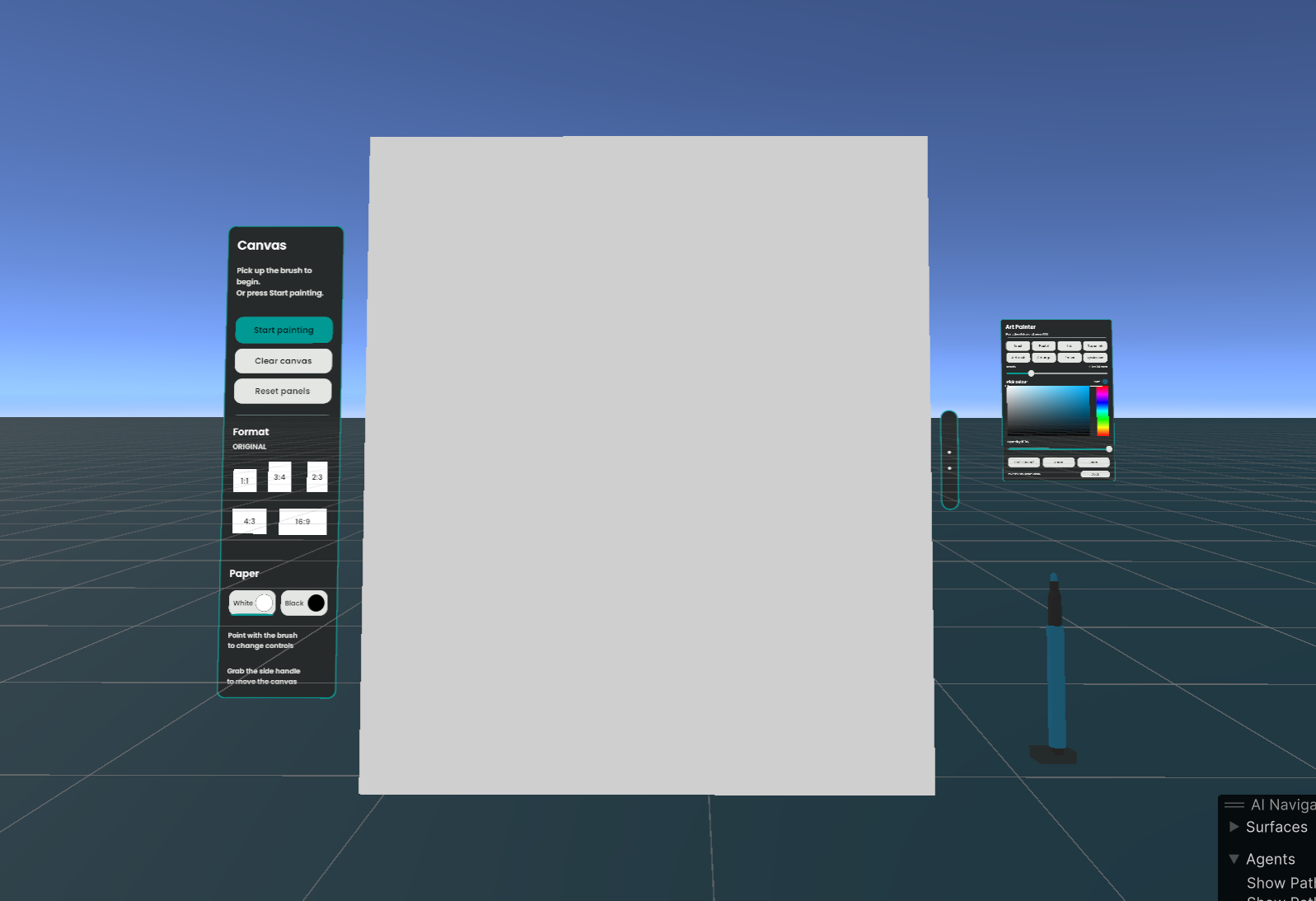
Art Painter brings that kind of energy to your world. It’s a painting setup with a handheld colour palette, a proper canvas and a brush that does a whole lot more than brush things.
Grab the brush and you’re ready to paint. Your controls sit beside your other wrist, so changing colours, adjusting your brush size and switching tools feels like part of painting. Prefer to keep your palette beside the canvas? Dock it there. Left-handed? Swap hands. Want to get comfortable? Grab the canvas handle and bring it closer.
Make yourself at home.
Switch between Brush, Pastel, Ink, Taper Ink and Airbrush to find the look you’re after. Blend things with Smudge, tidy up with Eraser, or use the Eyedropper to pick a colour straight from your painting.
Go soft and sketchy. Draw crisp lines. Spray a little atmosphere over everything. Add emissive paint when your masterpiece needs a brighter personality.
And when a stroke goes spectacularly wrong? Undo is right there.
Choose white or black paper and pick from five canvas shapes, from square to wide landscape and tall portrait.
The colour picker, size slider and opacity controls give you room to experiment – whether you’re carefully building up a painting or confidently making a mess.
You don’t have to be good at art to have a good time.
Add an art corner to your home world, set up a creative hangout, or put a few workstations together for a drawing night.
Each workstation gives one artist their own canvas while everyone else can watch the picture take shape. Try drawing challenges, swap portrait subjects, or just paint while you chat.
Import the Unity package, drag Art Painter into your VRChat world and put it where you want it. The brush, handheld palette, canvas and controls come connected and ready to test.
Included:
A couple of things to know: This is a prefab for VRChat worlds, so you’ll need Unity and a VRChat Worlds project to install it. Paintings are session-based rather than permanently saved—grab a photo of anything you want to keep. Standalone Quest support is not yet fully verified.
Questions? Say hello at hello@melemelo.com.
Make some art. Make a mess. See where it goes.
Art Painter is a painting system for VRChat worlds. It includes a canvas, one handheld painting tool, a compact wrist-following control panel and a canvas sidebar.
The tool switches between Brush, Pastel, Ink, Taper Ink, Airbrush, Smudge, Eraser and Eyedropper.
No coding is needed for the standard installation. But! You should be comfortable opening your VRChat world in Unity, importing a package and placing a prefab.
Some advanced customisation, including a complete UI colour theme, requires editing scripts.
You need a VRChat **Worlds** project with the Worlds SDK and UdonSharp installed through VRChat Creator Companion.
This release was prepared with Unity **2022.3.22f1** and Worlds SDK **3.10.5**. Check the product listing and release notes for supported versions before updating your project.
Art Painter is a world asset, not an avatar accessory. For help creating a world project, see [VRChat’s official setup guide](https://creators.vrchat.com/worlds/creating-your-first-world/).
1. Back up your world project.
2. In Unity, choose **Assets → Import Package → Custom Package**.
3. Select the Art Painter `.unitypackage` and import all supplied files.
4. Wait for importing and compilation to finish.
5. Find **Assets → Art Painter → Art Painter.prefab**.
6. Drag the prefab into your scene.
7. Position it, save your scene and run the VRChat SDK’s **Build & Test**.
You do not need Particle Painter or another painting package. The supplied prefab already has its internal references connected.
Select the top-level **Art Painter** object in the Hierarchy and move or rotate it.
Keep its scale at **1, 1, 1** for the intended canvas size, brush behaviour and panel proportions. If it is inside another object, that parent should also have a scale of **1, 1, 1**.
Leave enough space for the artist to stand or sit comfortably, move their hands and reach the controls.
Pick up the brush. On an available workstation, painting starts automatically; **Start painting** is an optional alternative.
Before making your first mark, choose your canvas format and paper colour. Use the handheld panel to choose a medium, paint colour, size and opacity.
Hold **Use** and touch the canvas to paint. Airbrush sprays from a distance.
Point the brush tip towards the handheld panel or canvas sidebar. A pointer appears when you aim at the controls.
Press **Use** to select a button. Hold **Use** while pointing and moving to adjust a slider or colour picker.
After selecting a control, **release Use before pressing it again to paint**. This prevents accidental marks when your pointer leaves the panel.
Yes. The painting tool can be held in either hand. In VR, the panel follows the opposite wrist.
On desktop, the panel remains at its dock beside the canvas.
Yes. Select **Dock** on the handheld panel to keep it at its dock. Select **Hand** to return it to wrist-following mode.
Dropping the brush also returns the panel to its dock.
Make these changes in Unity **outside Play mode**. Expand **Art Painter → Art Painter systems** in the Hierarchy.
| What you want to change | Object to adjust |
|---|---|
| Where the handheld panel rests | **Hand panel dock** — change its position and rotation |
| Where the brush returns | **Stylus return dock** — change its position and rotation |
| Where the canvas initially appears | **Raised workstation → Movable canvas** |
| Where Reset Panels returns the canvas | **Raised workstation → Canvas home** |
When repositioning the canvas, move **Movable canvas** and **Canvas home** together by the same amount so the starting and reset positions agree.
When repositioning the brush dock, also place **Painting stylus - grab then point or paint** at the new dock position so it starts there immediately.
Keep these objects inside the complete prefab hierarchy. Test pickup, dropping, docking and **Reset panels** afterwards.
The handheld panel’s position is controlled by its dock or your wrist at runtime. Moving only the visible panel does not change its dock.
The canvas sidebar also has positions managed by the canvas-format system. Those positions are reapplied when the canvas starts or changes format.
Use the dock objects for supported placement changes. Moving the sidebar independently requires updating its format-layout settings as well.
Yes. Select **Handheld painting controls** and find its **NMSHandPalette** component.
- **Hand Tilt Degrees** controls its starting angle. The default is **30** degrees from upright. Smaller values make it more upright; larger values make it flatter.
- **Height Above Hand** adjusts its offset along the panel’s own up direction.
- **Forward Offset** adjusts its offset along the panel’s own forward direction.
The panel follows wrist rotation after its starting angle is established. Make small adjustments and test with your headset.
Yes, although this release does not have a single theme-colour setting.
The panel backgrounds, borders and many decorative elements use Unity UI **Image** components. Their colours can be changed in the Inspector. Text elements have their own colour settings.
For example, look for **Graphite panel** and **Teal edge** beneath the handheld panel.
Some colours are controlled at runtime:
- Handheld button selection colours are set in **NMSHandPalette.cs**.
- Sidebar buttons also use Unity’s **Button → Colors** settings.
- Some sidebar status colours are set in **NMSCanvasBar.cs**.
Changing only a button’s Image colour may therefore be overwritten when you start using it. A complete theme change requires updating these states consistently.
Keep text readable against the new backgrounds. Avoid changing the painting or colour-picker materials when you only want to recolour the interface.
Select **Art Painter systems** and find its **NMSCanvas** component.
- **Loaded Colour** sets the initial paint colour.
- **Radius** sets the initial brush radius in metres.
- **Intensity** sets the initial opacity: **1** means **100%**.
The supplied opacity is **100%**. The normal brush-size range is approximately **6–80 mm in diameter**; the Radius setting is half the diameter.
These are starting settings. Artists can change them using the handheld controls.
Back up the project before importing an update. Keep a record of your changes and use scene-instance overrides or a prefab variant where appropriate.
Customisations made directly to supplied scripts or material assets may be overwritten by an update. Keep copies of those changes separately and check the release notes.
Test an update in a copy of your project first, especially if it contains an older version of the painting system. See [Unity’s guide to prefab overrides](https://docs.unity3d.com/2022.3/Documentation/Manual/PrefabInstanceOverrides.html) for how instance changes are stored.
Yes. After starting the workstation, and before painting, use the sidebar to choose:
- Square — **1:1**
- Landscape — **4:3**
- Wide landscape — **16:9**
- Portrait — **3:4**
- Tall portrait — **2:3**
Paper can be **white or black**. Changing the paper does not change your selected paint colour.
Once painting begins, format and paper are locked. Use **Clear canvas** to start fresh and choose again. Arbitrary freeform canvas resizing is not supported.
**Reset panels** returns the canvas to its home position and docks the handheld panel. It does not erase your painting.
**Clear canvas** starts a fresh painting and removes the existing artwork and Undo/Redo history. It requires a second press within three seconds to confirm.
No. Confirming **Clear canvas** also clears the history.
For ordinary painting edits, Undo retains up to the last **eight edits**. If you undo something and then make a new mark, the previous redo branch is replaced.
**Ink** produces a consistent-width ink stroke.
**Taper Ink** narrows the beginning and end of the stroke for a more pointed, expressive result.
Both use the same physical painting tool.
Select **Eyedropper**, then touch the painting with the tool tip. The sampled colour becomes your active paint colour.
Choose a drawing medium afterwards to continue painting. The Eyedropper samples the canvas, not objects elsewhere in the world.
Emission gives newly painted marks an emissive appearance. It is separate from paint opacity.
It does not automatically make paint illuminate nearby objects or add a visible glow halo. Its appearance also depends on the world’s rendering and visual effects.
- Make sure you are holding **Use**, not only touching the canvas.
- After using a menu or slider, release Use and press it again.
- Check that you selected a drawing medium rather than Eyedropper.
- Check your opacity and whether the paint colour matches the paper.
- Move the handheld panel away from the drawing area if the pointer is hitting it.
- Release the canvas handle and let the canvas settle before painting.
- Read the sidebar status. A workstation may be restoring artwork or already assigned to another artist.
If the problem persists, test a fresh, unmodified prefab instance and check Unity’s Console for errors.
While holding the brush, use its pointer to operate the sidebar. The ordinary controller-click path is intentionally ignored to prevent duplicate button presses.
When you are not holding the brush, use the normal VRChat controller pointer.
Start the workstation by picking up the brush or pressing **Start painting**.
The choices are available while your canvas is blank. They become unavailable once painting begins, while a format change is processing, or when the workstation belongs to another artist.
To change format or paper after painting, use the confirmed **Clear canvas** action.
This is intentional. The brush returns to its dock after a short delay so it does not get lost around the world.
Change **Stylus return dock** in Unity if you want a different return location.
Art Painter includes synchronisation for artwork and the held tool. Each workstation is intended for **one artist at a time**.
Other players can view the artwork. The handheld panel’s wrist position is personal to the person using it.
New arrivals may need time to receive the current painting. If the interface says it is restoring artwork, allow that process to finish.
Use a separate complete Art Painter prefab for each artist. Each workstation has its own canvas and painting state.
Duplicate the entire prefab rather than copying only its canvas or tool. Each additional workstation uses more memory and processing resources, so test the intended number in your world.
Art Painter is designed around artwork within a running world instance. It does not provide a permanent painting library or a save-to-file button.
Do not rely on artwork surviving an instance restart, leaving and returning, or a new world upload. Take a screenshot or use VRChat’s camera to keep a visual record.
The package has passed Android import and build checks, but standalone Quest headset behaviour and performance have not yet been fully verified.
If Quest support is essential to your purchase, contact **hello@melemelo.com** and check the current product listing before buying. A successful Android build alone does not guarantee comfortable performance in every world.
First, wait for Unity to finish importing and compiling.
Confirm that this is a VRChat Worlds project with the required SDK installed. Import the **complete** Art Painter package, including its materials, shaders and scripts—not just the prefab.
For compilation problems, check the **first red Console error**. Later errors may be consequences of that first problem. Older painting-system scripts or renamed duplicate script files can also cause conflicts.
If materials remain pink, send support a screenshot and the relevant Console errors rather than replacing the painting shaders at random.